Easee
May 6, 2026
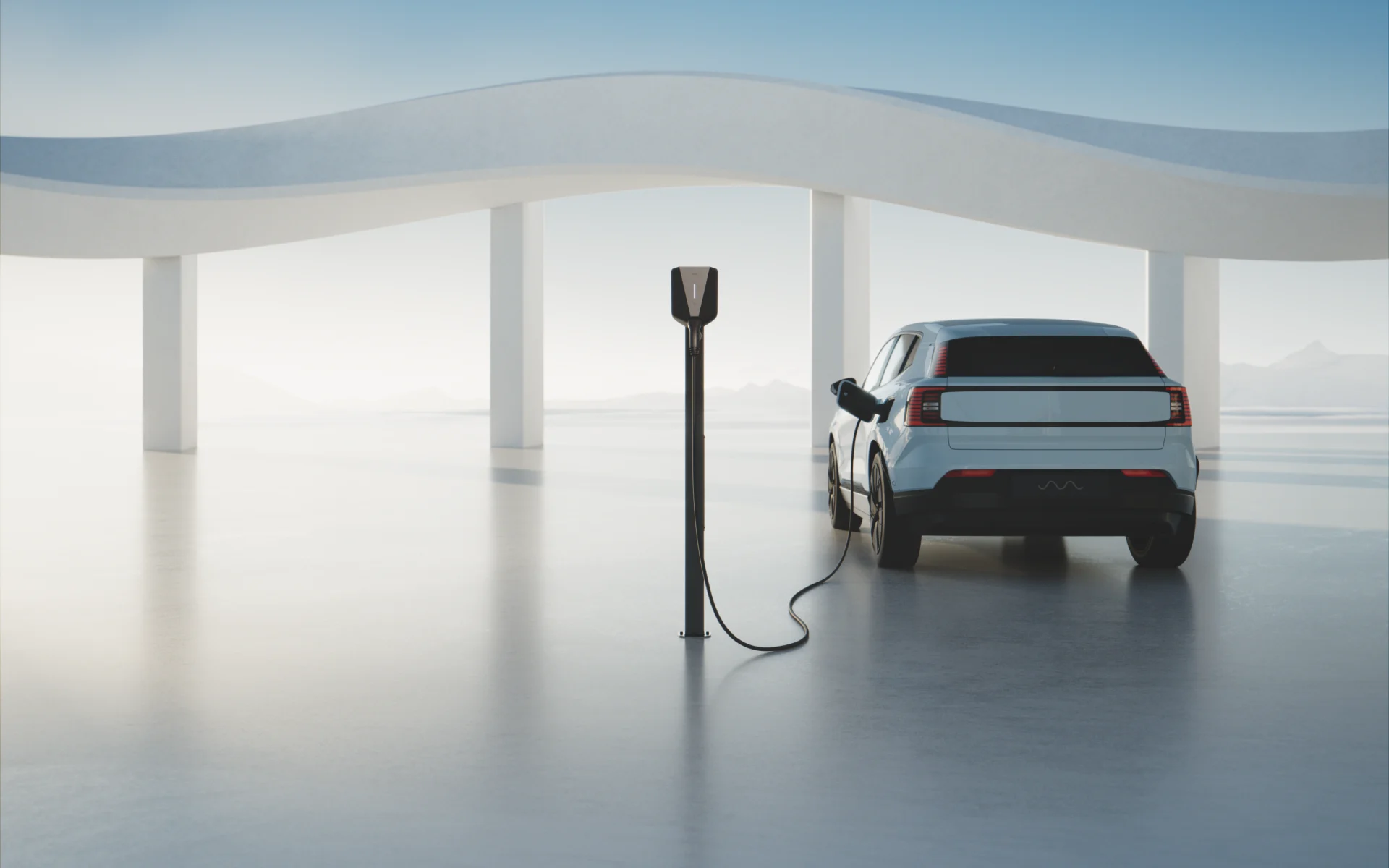
Find your charger in the Easee app.
Open the Easee app on your phone (iOS or Android) and find your charger on the home screen.
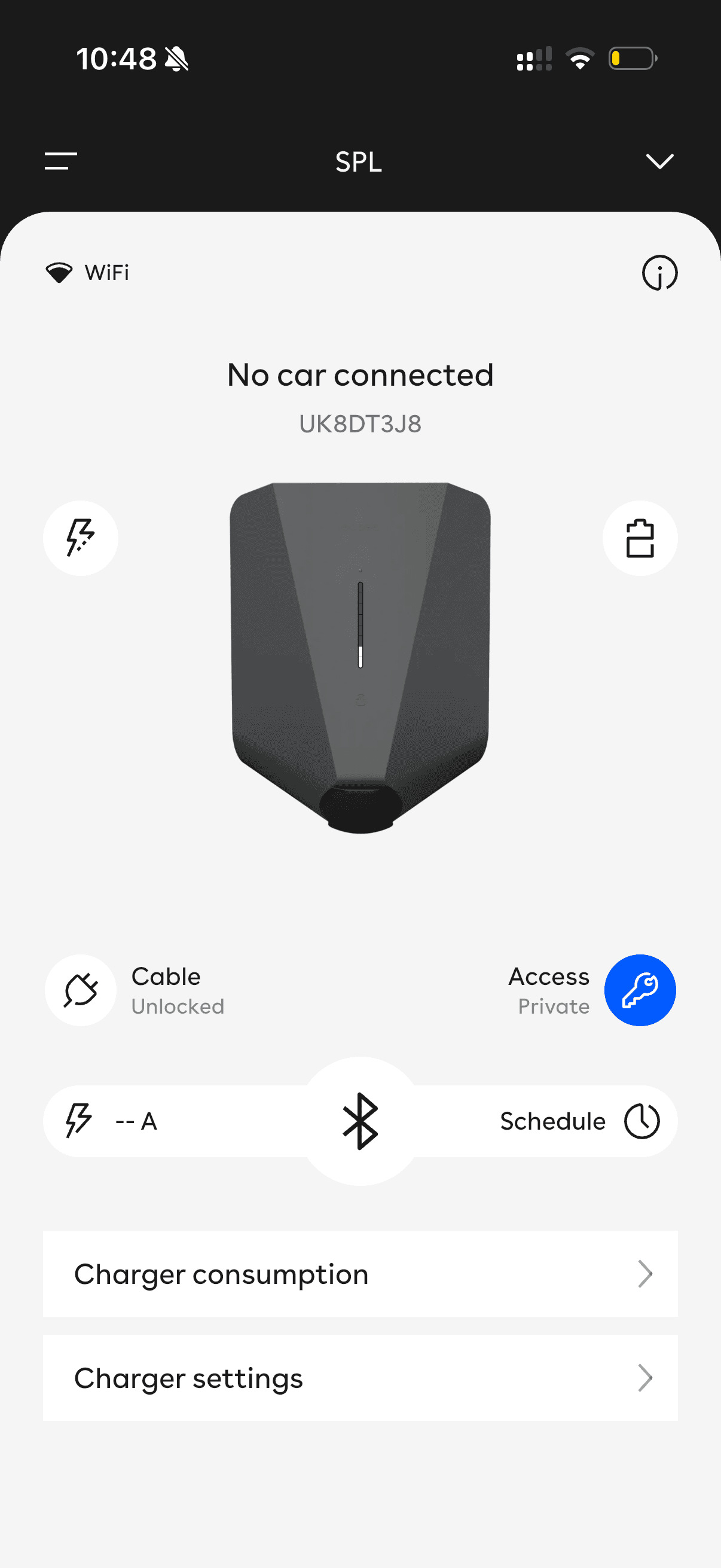
Swipe the charger card down and press Site settings.
Swipe the charger card downwards to reveal the Site settings button, then tap it.
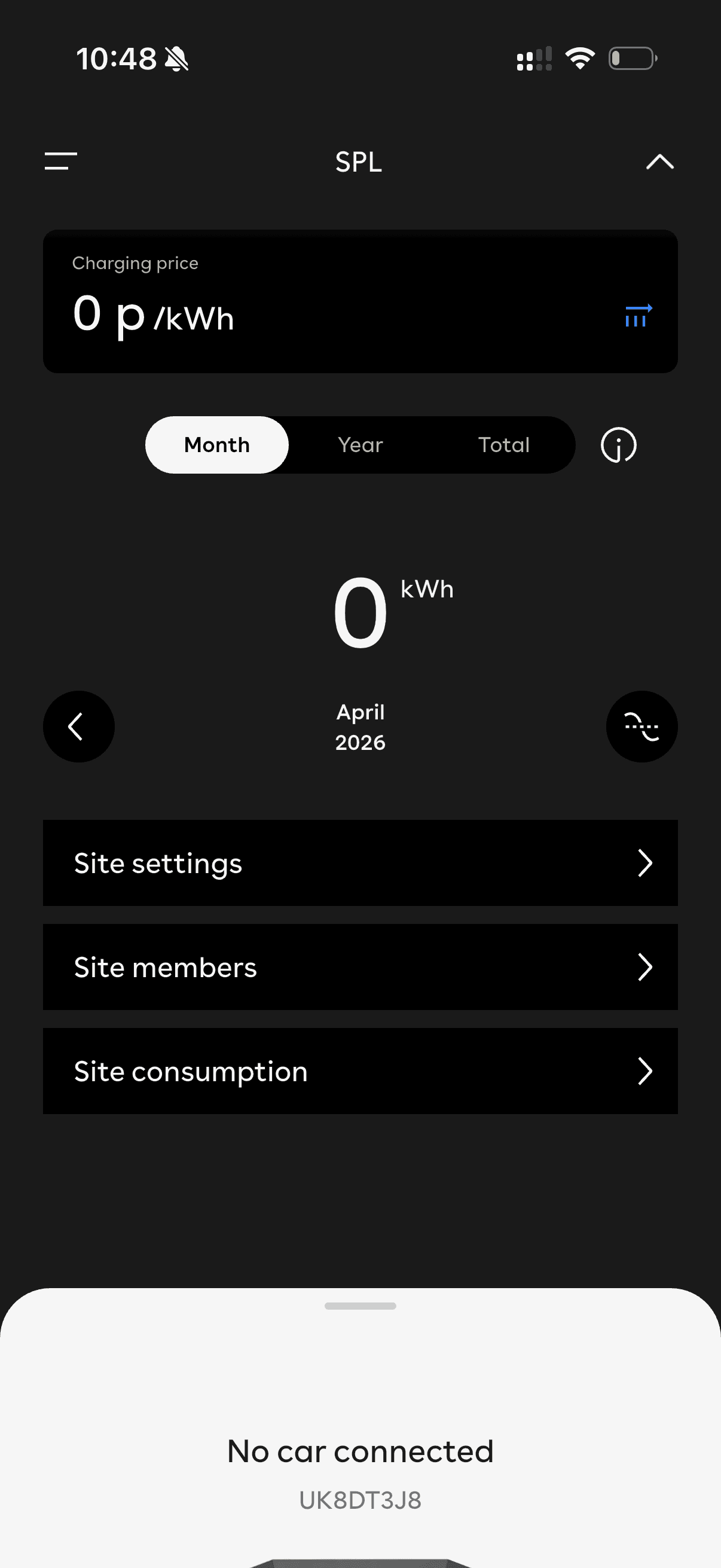
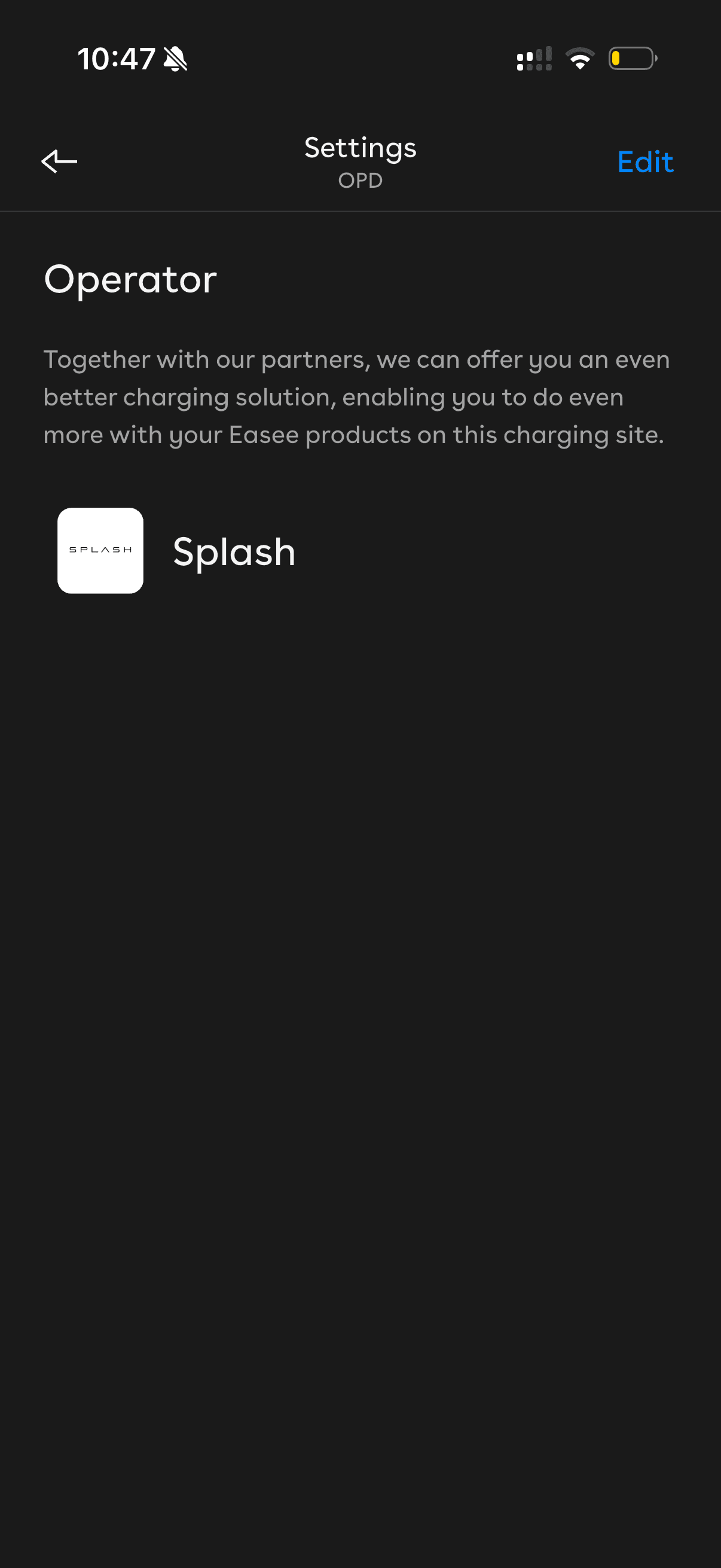
In the General section, press Operator.
In the Settings page, find the General section and tap Operator. Worth knowing before you switch: setting Splash as your operator hands charge scheduling to Splash, and Easee's own Smart Charging (Price Cap) switches off while Splash is the operator. That's expected, not a fault.
Press Edit in the top-right corner.
If your site is already connected to an operator, it will be shown here. To change it, press Edit in the top-right corner. A list of all operators is shown.
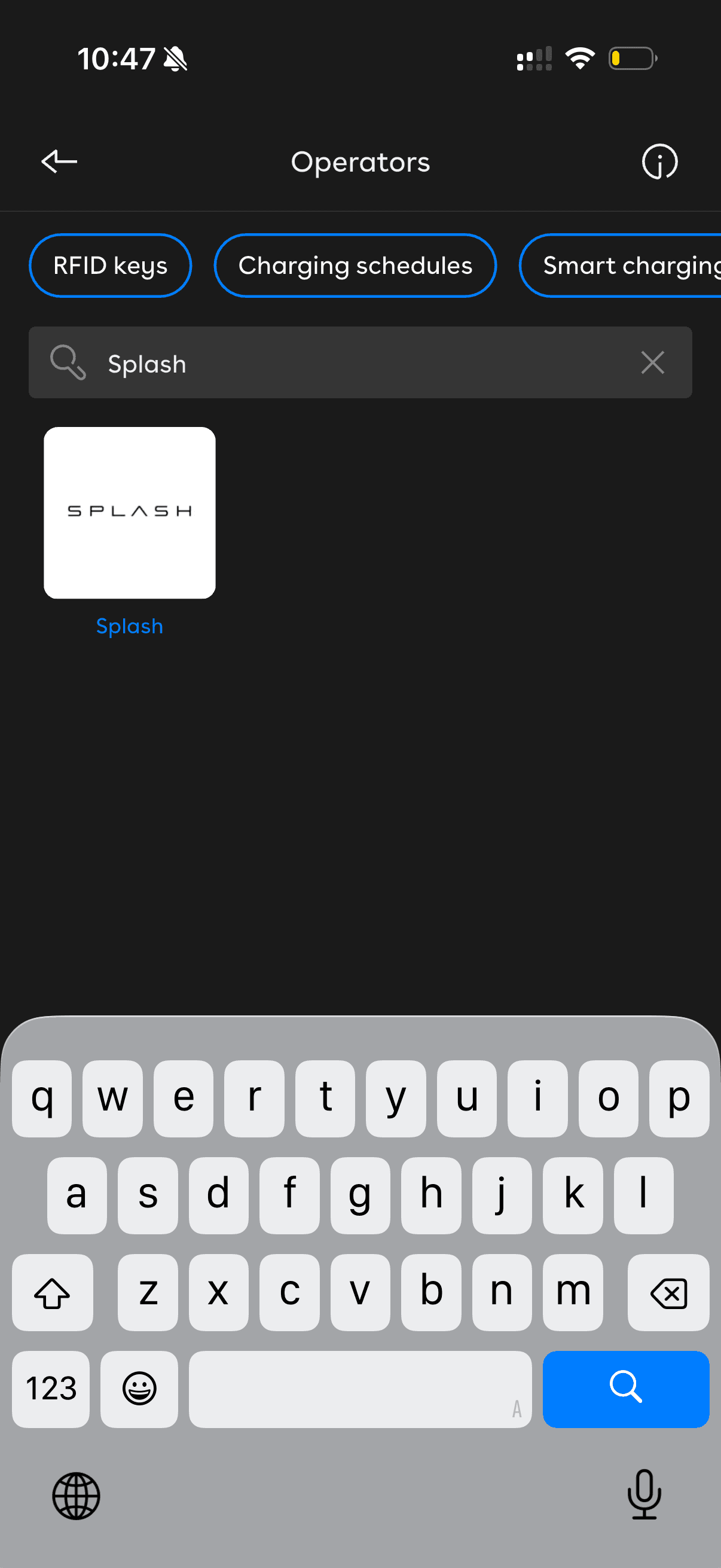
Search for and select Splash.
Search 'Splash' in the operators list, then tap the Splash tile. You'll see information about Splash. To change your selection, tap the drop-down to show the list again.
Press Save.
Press Save to complete the selection. Easee automatically applies the OCPP configuration to your charger, no URL entry needed.
Open Splash Share.
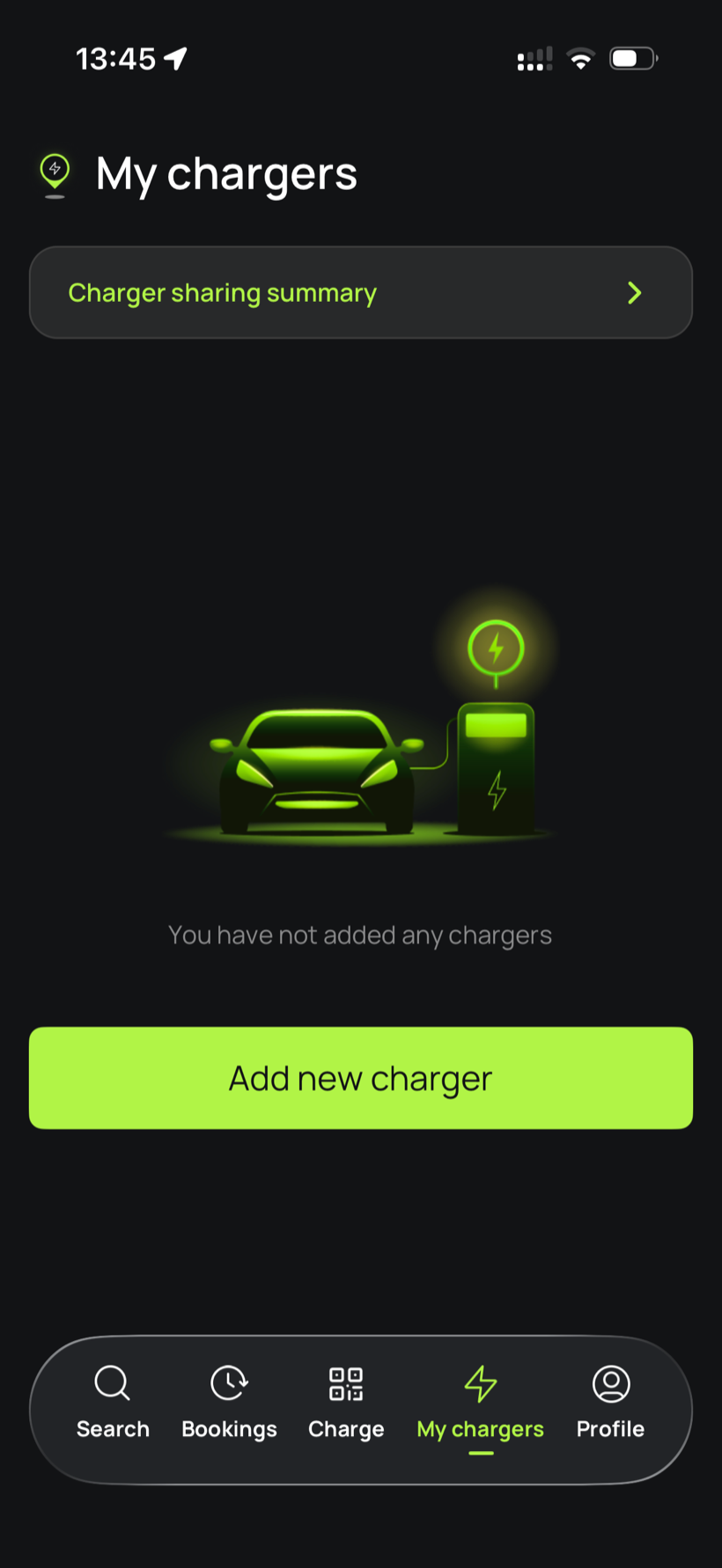
Go to My chargers, then tap Add new charger.
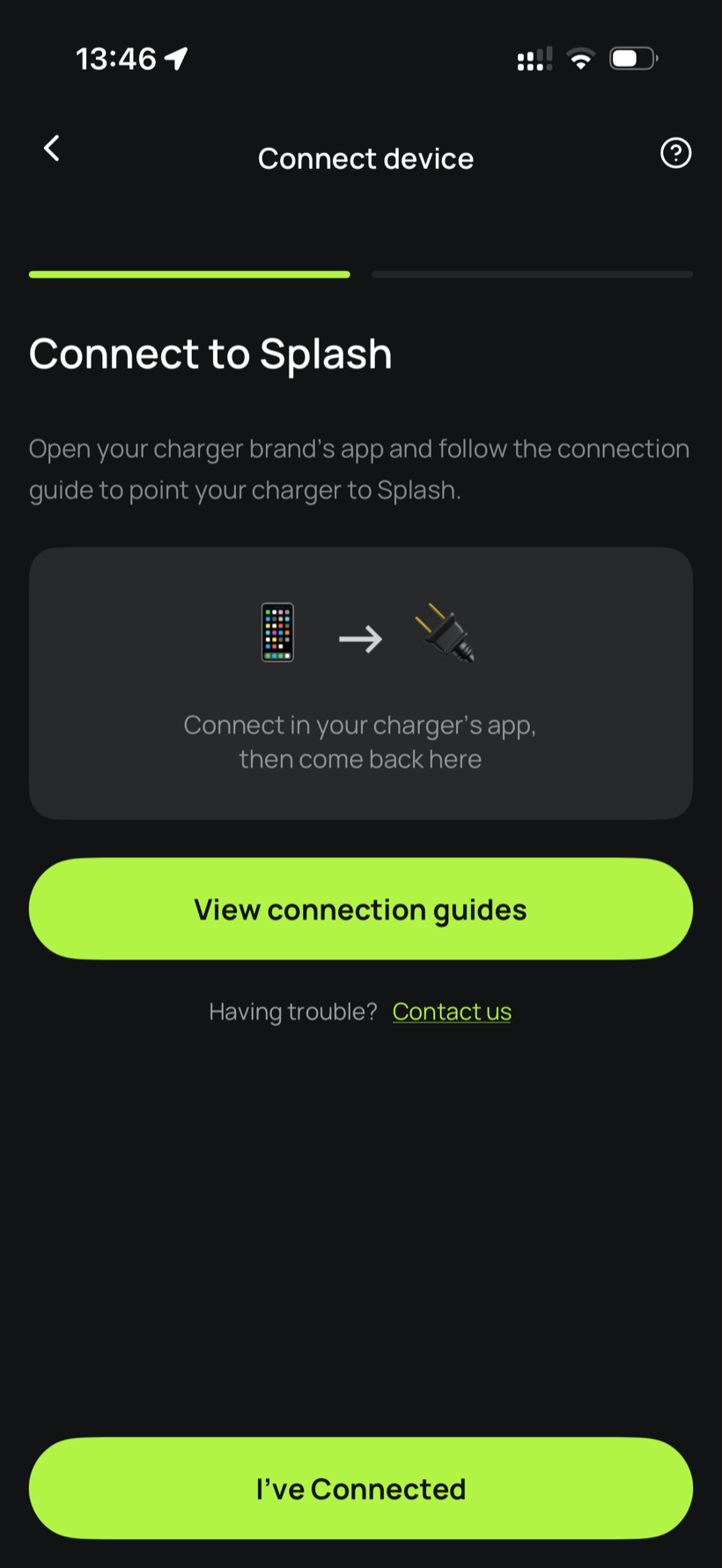
Tell Splash you're connected.
The app first asks you to connect through your charger brand's app. That's what you've just done in the steps above, so tap I've Connected.
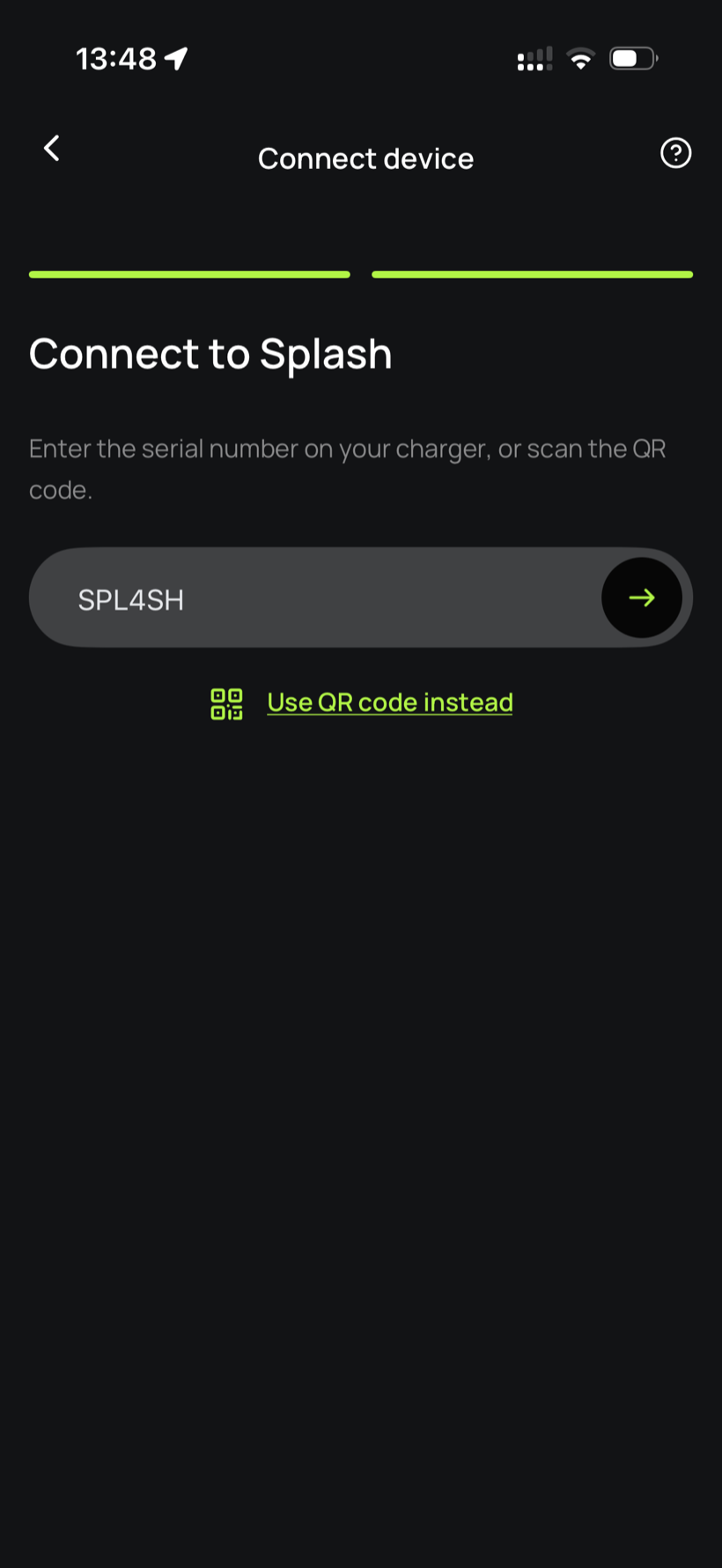
Enter your serial number.
Enter the serial number in the field.
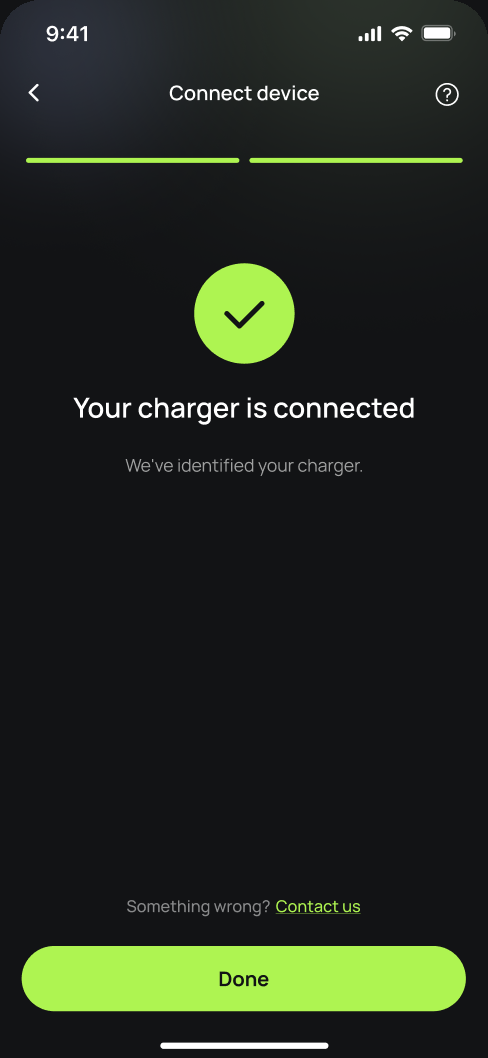
You're connected.
Splash finds your charger and confirms the connection. Tap Done.
Finish setting up in the app.
Your charger isn't live yet. Follow the instructions in the app to add your charger's details and finish the setup. Once you're done we'll know, and we'll post your Splash QR sticker out to you so guests can scan it to start a session.