Ratio io5 / io6
Jun 15, 2026
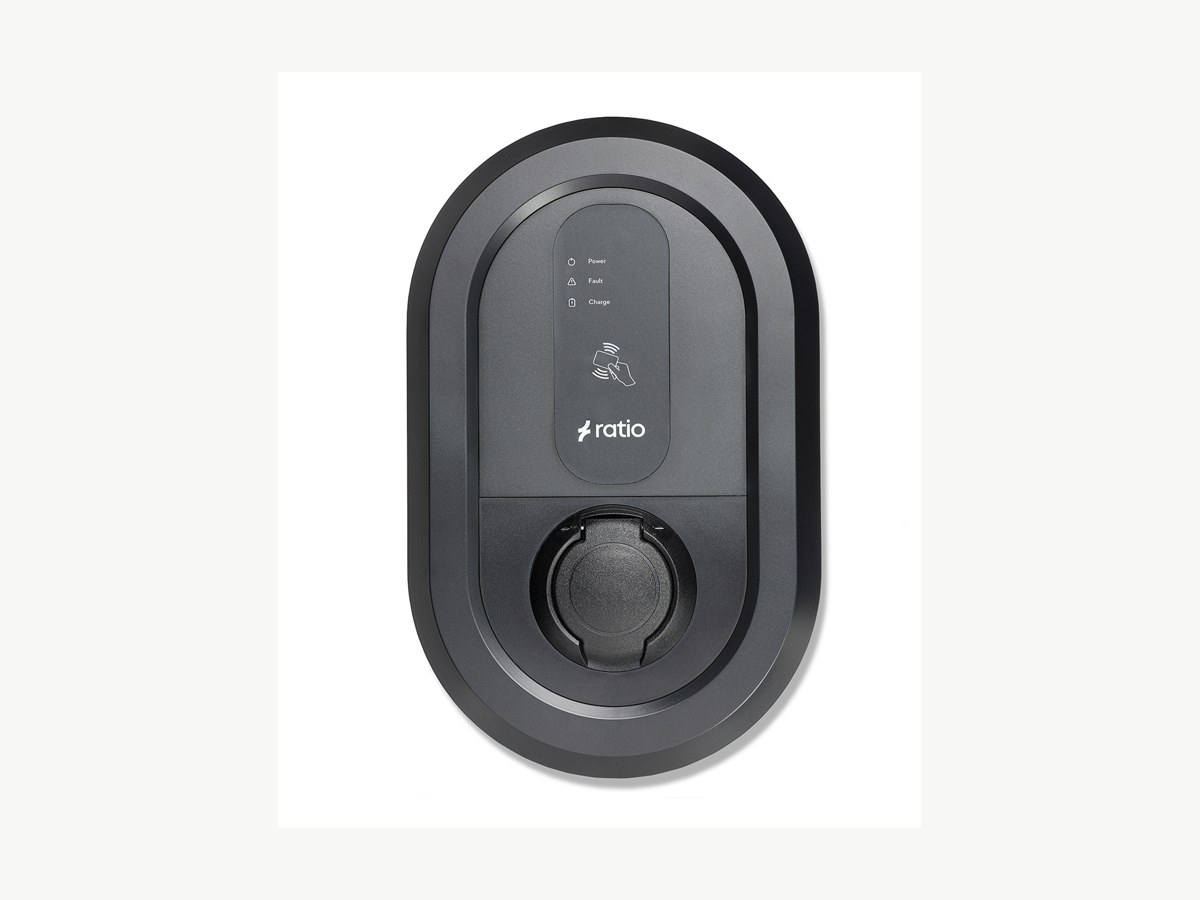
Open the Ratio EV Charging app.
Download and open the Ratio EV Charging app. Make sure Bluetooth is enabled on your phone and you are near your charger.
Connect to your charger via Bluetooth.
Pair with your Ratio io5 or io6 charger via Bluetooth. Add the unique Bluetooth passcode which can be found in the provided accessory pack.
Go to Advanced settings.
In the app, click on "Advanced settings" to access the charger configuration options.
Open OCPP settings.
Navigate to "OCPP settings" within the advanced configuration section.
Enable the CSMS connection.
Toggle on the CSMS (Charge Station Management System) option to enable backend communication.
Enter the Splash websocket address.
In the websocket address field, enter the Splash OCPP URL: wss://cpms.splashrenewable.co.uk/, then tap Save.
Open Splash Share.
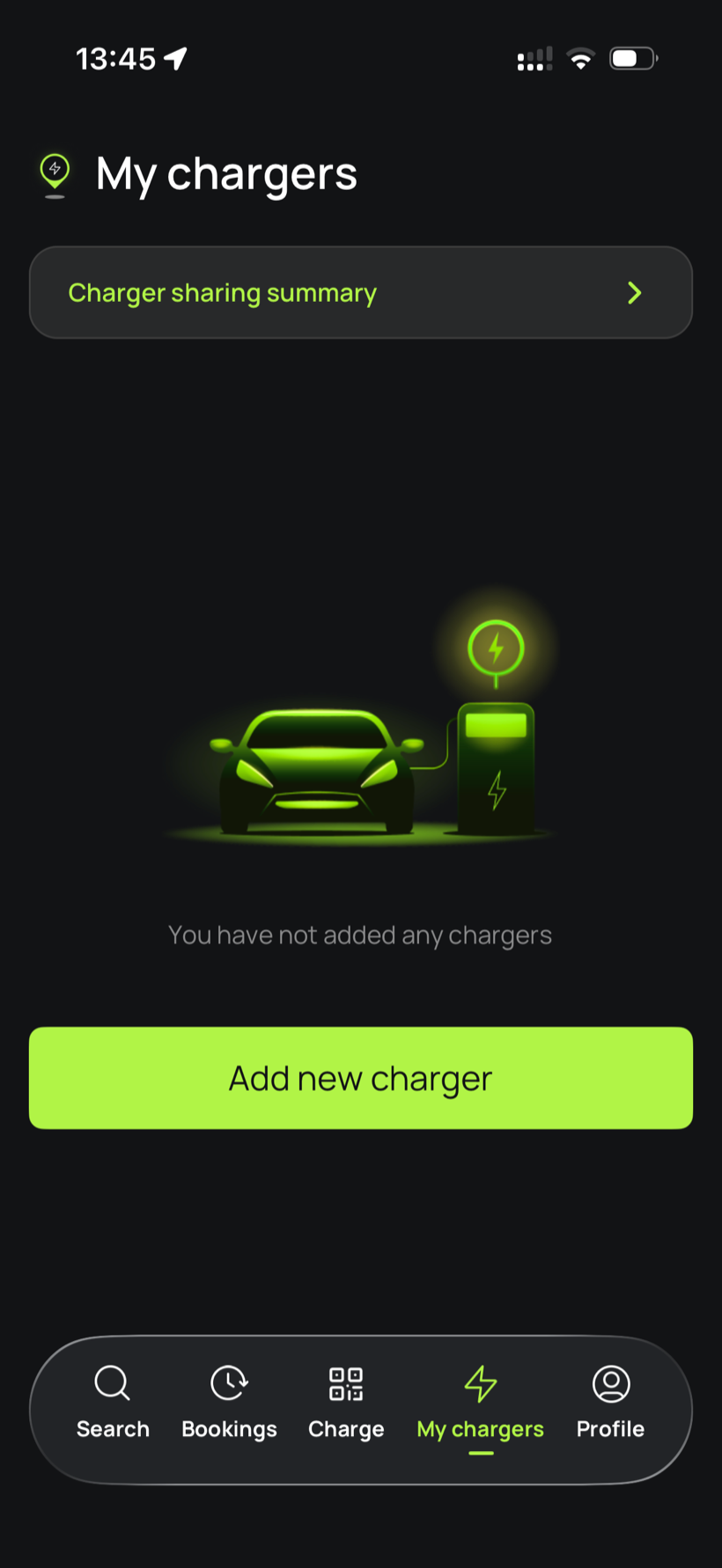
Go to My chargers, then tap Add new charger.
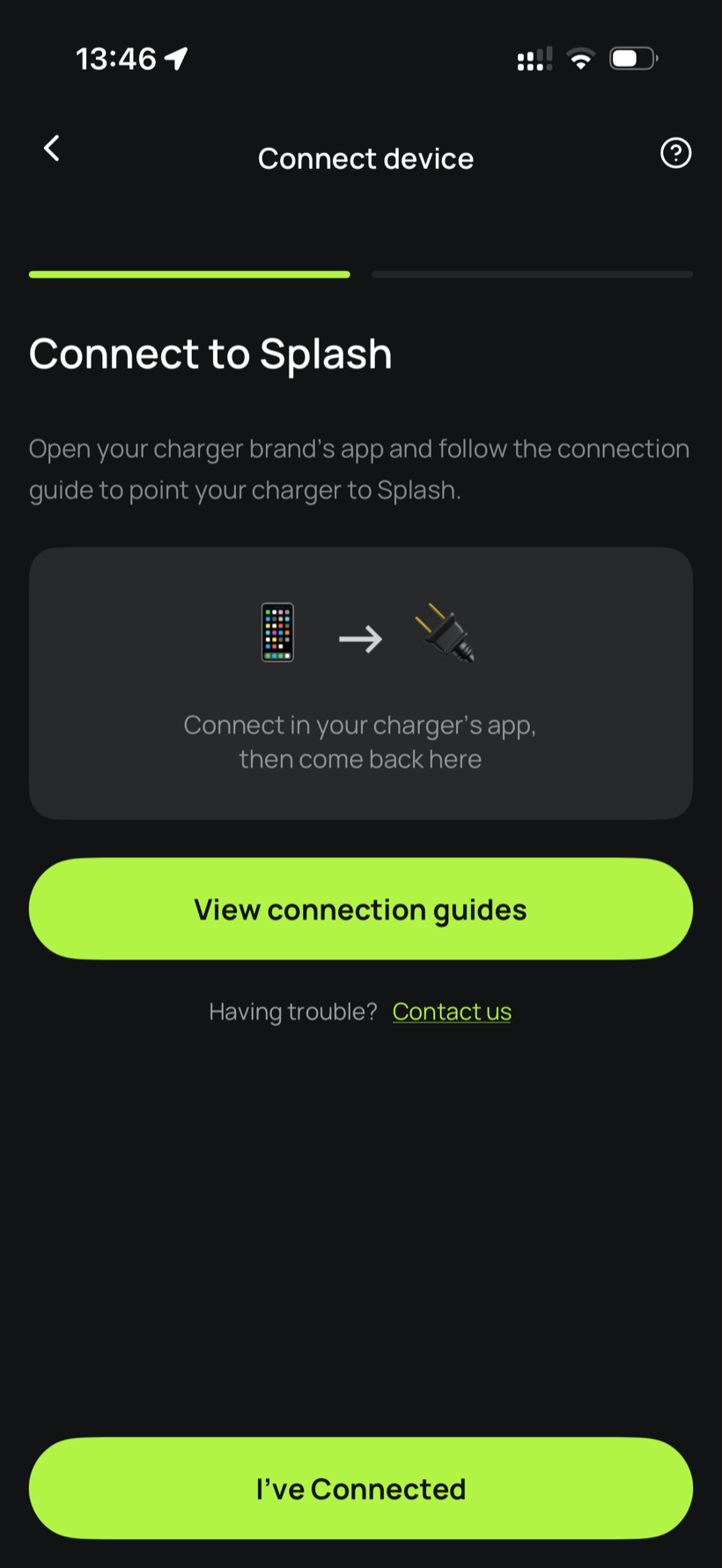
Tell Splash you're connected.
The app first asks you to connect through your charger brand's app. That's what you've just done in the steps above, so tap I've Connected.
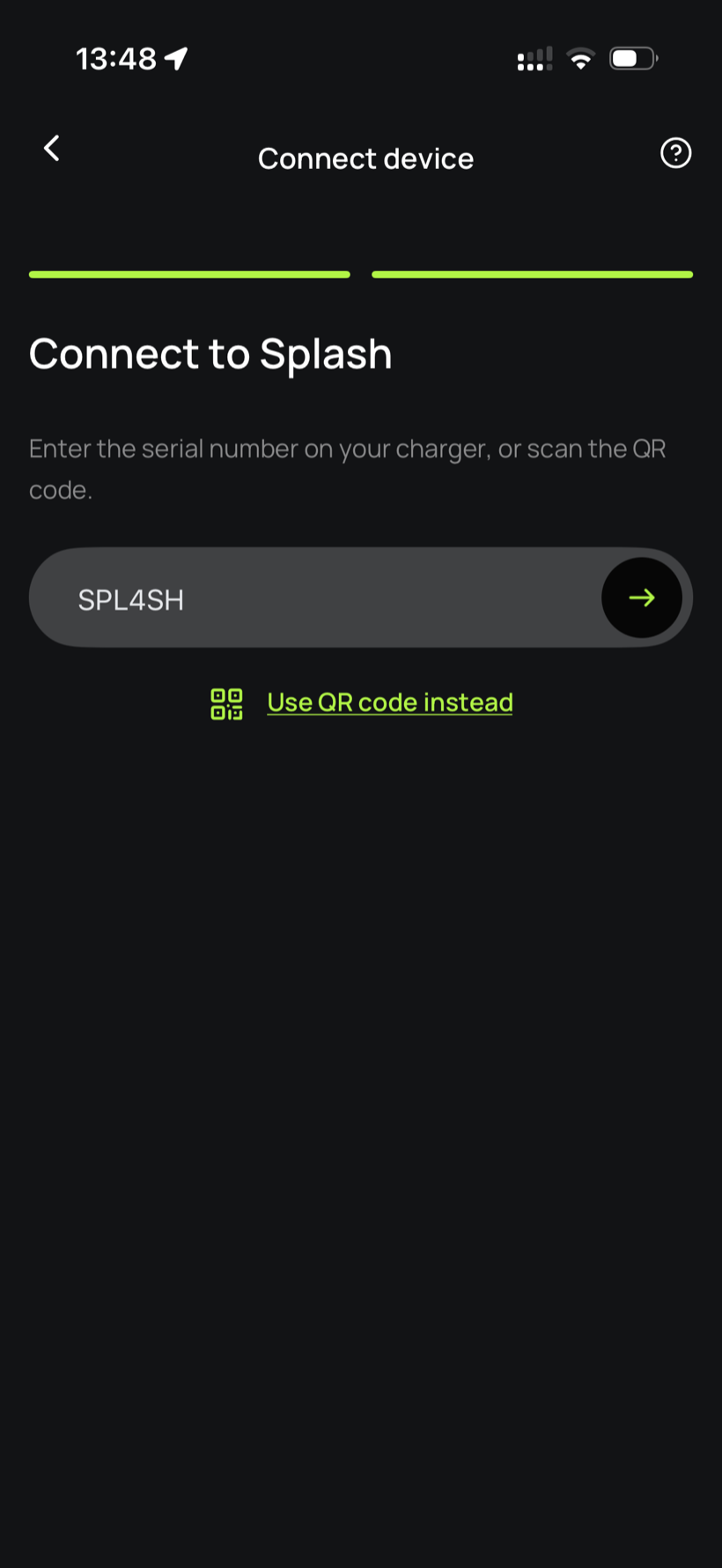
Enter your serial number.
Enter the serial number in the field.
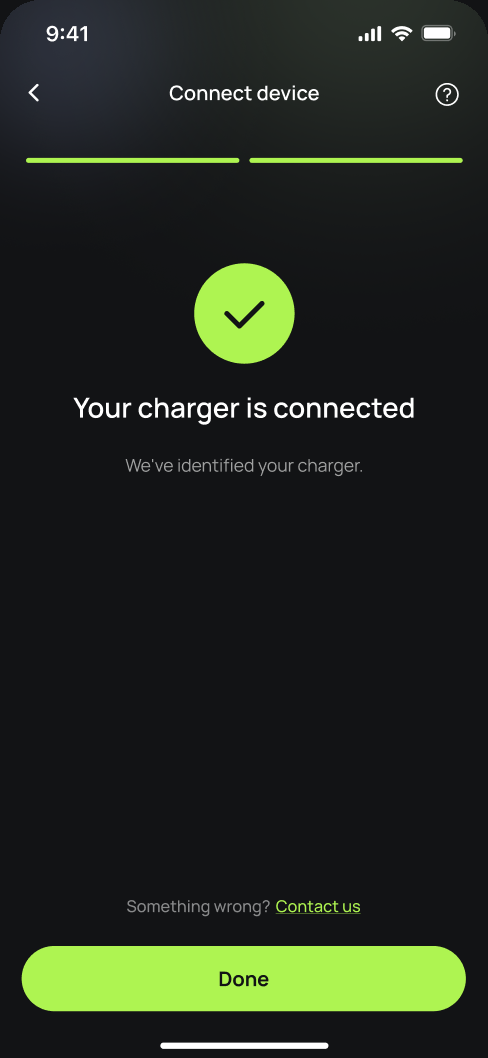
You're connected.
Splash finds your charger and confirms the connection. Tap Done.
Finish setting up in the app.
Your charger isn't live yet. Follow the instructions in the app to add your charger's details and finish the setup. Once you're done we'll know, and we'll post your Splash QR sticker out to you so guests can scan it to start a session.